Embed a Flip Clock in Your Web Page: One iframe Is Enough
This is a snippet you can paste into any website. Paste it, and your page has a flip clock that actually runs.
No plugin, no theme files to edit, no account to create, no payment.
What follows covers four things: how to add it, which styles exist, where it makes sense, and how to make it look like it belongs.
I. Add it to your site in three minutes
Start at the embed builder. Pick a style, a time zone and colours on the left; the preview on the right updates as you go. When you like what you see, hit "show code" and copy the snippet.
Then paste it into your site. Where it goes depends on the platform:
| Platform | Where to paste |
|---|---|
| WordPress | Add a "Custom HTML" block to the post or page |
| Squarespace | Add a Code Block |
| Wix | Add an Embed → Custom Embed |
| Shopify | Switch the page editor to HTML view |
| Webflow | Drop in an Embed component |
| Notion | Type /embed and paste only the address, not the whole snippet |
| Hand-written HTML | Put it straight in the file |
Save, refresh, and the clock is there.
A few places people get stuck: the classic WordPress editor needs "Text" mode rather than "Visual"; page builders like Elementor have an "HTML" widget; and Notion only takes a URL, so the small attribution line under the clock will not appear there.
II. Two styles, pick one
Flip on the left, plain digits on the right. Both are real and both are running.
Flip imitates the departure boards in old railway stations and airports. Each digit is split across a horizontal seam, and when the number changes the top half rotates forward. It has presence — good for the top of a page, an event page, anywhere you want people to notice.
Plain digits is just a line of large type. Quiet and legible — good for a sidebar, the middle of an article, a dashboard. Somewhere people want to read the time rather than admire the clock.
In one sentence: if the clock is the decoration, choose flip; if people just need the time, choose plain.
Three sizes cover most cases:
| Where it goes | Width × height |
|---|---|
| Sidebar or card | 320 × 120 |
| Inside body text | 480 × 140 |
| Page-top banner | 728 × 180 |
Narrower than that and the clock scales down as a whole — nothing gets cropped, but the digits get smaller.
III. Where it makes sense
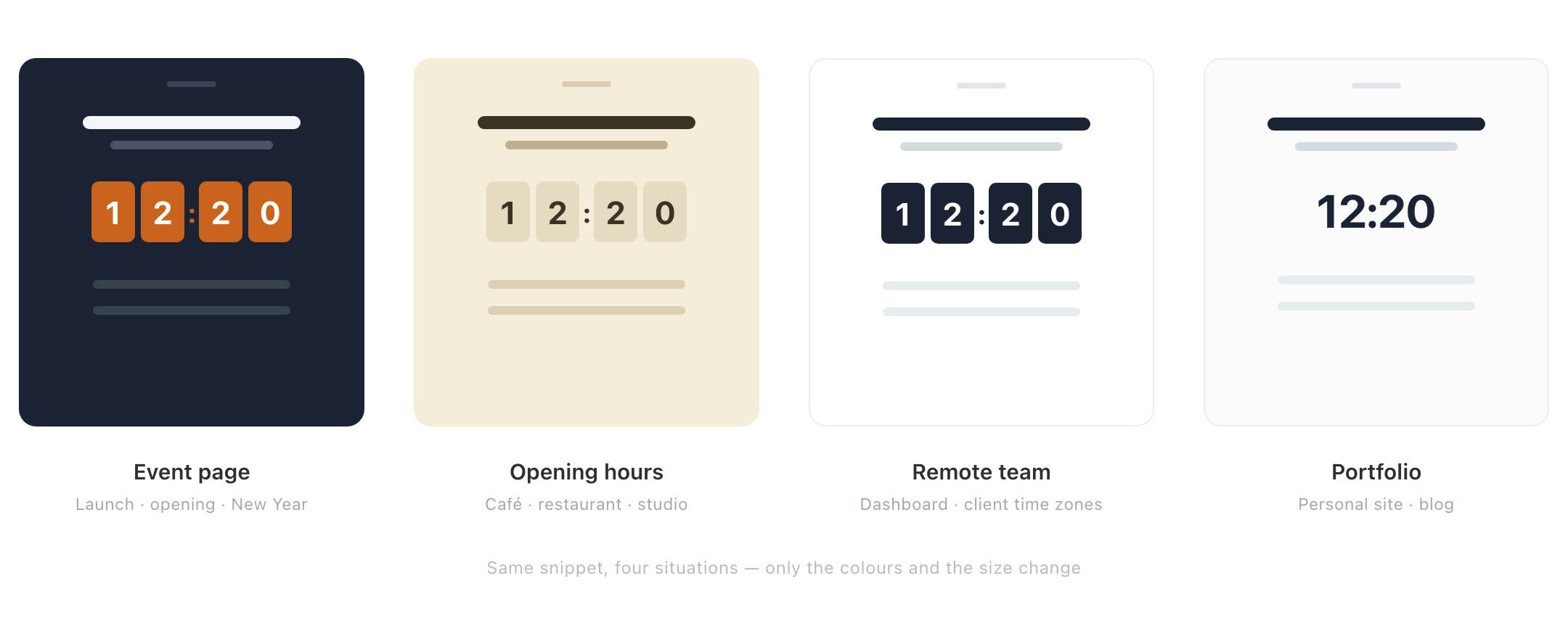
Same snippet, four situations. Different colours and sizes, a few parameters apart.
Event pages. Launches, openings, wedding invitations, New Year pages. A clock that moves carries more weight than a static screenshot.
Opening hours. On a café's, restaurant's or studio's site, a clock showing local time beats writing "Mon–Fri 9:00–18:00". Visitors can see at a glance whether you are open.
Remote teams. Put a client's city on the dashboard and nobody has to do time-zone arithmetic before a call.
Portfolios and personal blogs. A small moving detail, near-zero cost, and the page stops looking like a template.
Landing and product pages. In the footer or a corner. It does not compete with the content, but it makes the page feel alive.
One case it does not fit: anything that needs a countdown. "Three days until launch" is not what this does. The clock shows the current time, not the time remaining.
IV. Match your site's colours
By default it has no background — it is transparent. So it sits on your page as if it grew there, with no white slab or black hole.
But transparent also means it does not know what colour your page is. On a light page the default light theme fits; on a dark page you have to tell it.
Two ways.
One: a theme. Pick "dark" or "light" in the builder. Two sets of colours, one click to switch.
Two: your own colours. Three parameters:
bg— the panel behind everything, transparent by defaultcard— the flip card colourink— the digit colour
The cards are amber now. The dark panel behind them belongs to this article, not to the clock — the clock has no background of its own.
The builder has colour pickers, so you can click rather than remember parameter names.
V. Time and content
Time zone. By default it shows whatever time the visitor's computer says. To pin it to a city, use the city name: Asia/Tokyo, Europe/London, America/New_York. Daylight saving follows automatically — you do not have to touch it twice a year.
12 or 24 hour. Change one number: format=12 or format=24.
Seconds. If the ticking digits are too busy, turn them off.
Date and city label. Plain digits only: add a line with the date, or a city label such as "TOKYO".
Click-through. By default clicking the clock opens Clockhub. If you would rather keep visitors on your page, turn it off.
All of these are switches in the builder. Tick them and the code updates itself — no hand-editing.
VI. Will it slow my site down?
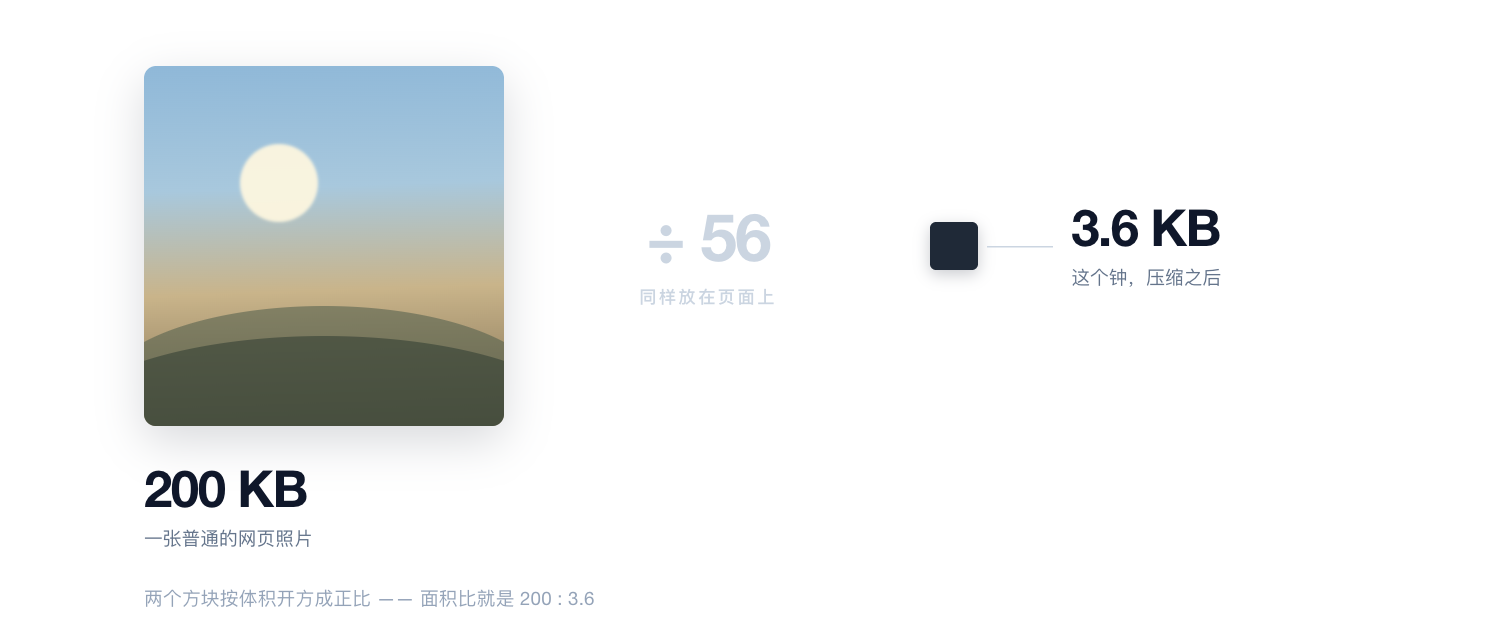
An ordinary photo on a web page is around 200 KB. This clock is 3.6 KB.
No.
It is 3.6 KB compressed, in a single request. For comparison, an ordinary photo on a web page is about 200 KB — this clock is under a fifty-sixth of that.
It loads no React, no web fonts, no icon library. The type comes from fonts already on the visitor's device (PingFang, Microsoft YaHei, Helvetica), so there is nothing to download.
And it is lazy by default: if a visitor never scrolls to it, it never loads.
The only extra request is the analytics script, which tells us how many sites use this. It waits until the page is idle before starting, so it does not compete with your content. It stays silent in local previews.
VII. Questions people ask
Does it cost anything? Do I need an account?
No. No account, no watermark, no "upgrade to pro".
Are there ads?
No ads in the clock, and no pop-ups. The ClockHub site is ad-supported, but the embedded clock carries none.
Will it break on mobile?
No. It scales to whatever box you give it, filling portrait and landscape without cropping.
Can I put more than one on a page?
As many as you like, each on a different time zone. A team page with Tokyo, London and New York side by side is a normal use.
My site runs on something else — will it work?
If the platform can accept HTML or an iframe, yes. The table above covers the common ones. If it only accepts a URL (Notion, for example), paste just the address rather than the whole snippet.
The time is wrong for my visitors
Check the time zone parameter. Left out, it shows the visitor's local time; set, it is pinned to that city wherever the visitor is.
Does it hurt SEO?
No. Content inside an iframe does not count as content on your page — which also means you should not expect it to add "time"-related keywords for you. It does not slow the page either: 3.6 KB, lazy-loaded.
Can I use it commercially?
Yes. Personal and commercial sites both, no application, no attribution required.
The snippet ends with a small "Clockhub" link by default. Delete that line if you would rather not have it; the clock keeps working.
VIII. Go get your code
The clocks above are real, not screenshots. They run the same file you are about to get, character for character.
Head to the embed builder: pick a style, a time zone, adjust the colours, and the code writes itself. Copy, paste, done. Under a minute.
If you want more than the time — a settings drawer, typefaces, lunar calendar, full screen — that is the Flip Clock on the main site. It is more complete, but it cannot move into someone else's page.
The embedded one does a single thing: it sits quietly in a corner of your page and flips once a second.